A professional desktop application for managing prepaid electricity token sales, designed for high-efficiency business operations.
Software Overview
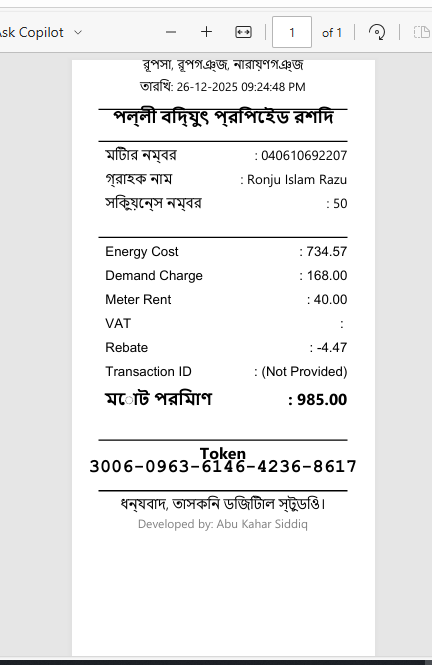
Bill Payment Manager automates the process of selling electricity tokens. It parses transaction SMS messages to extract critical data (Token, Meter Info, Cost Breakdown), saves the records to a local database, and generates professional thermal receipts. It also features a powerful dashboard for financial analytics.
Key Features:
- ⚡ SMS Parsing: Instantly extracts Token, Meter Number, Energy Cost, VAT, etc.
- 🖨️ Smart Printing: Auto-generates receipts with direct printing support.
- 📊 Business Analytics: Real-time financial insights (Energy Sold, Meter Rent, Demand Charge, VAT, Rebates).
- 📅 Date Filtering: Analyze business performance for any specific date range.
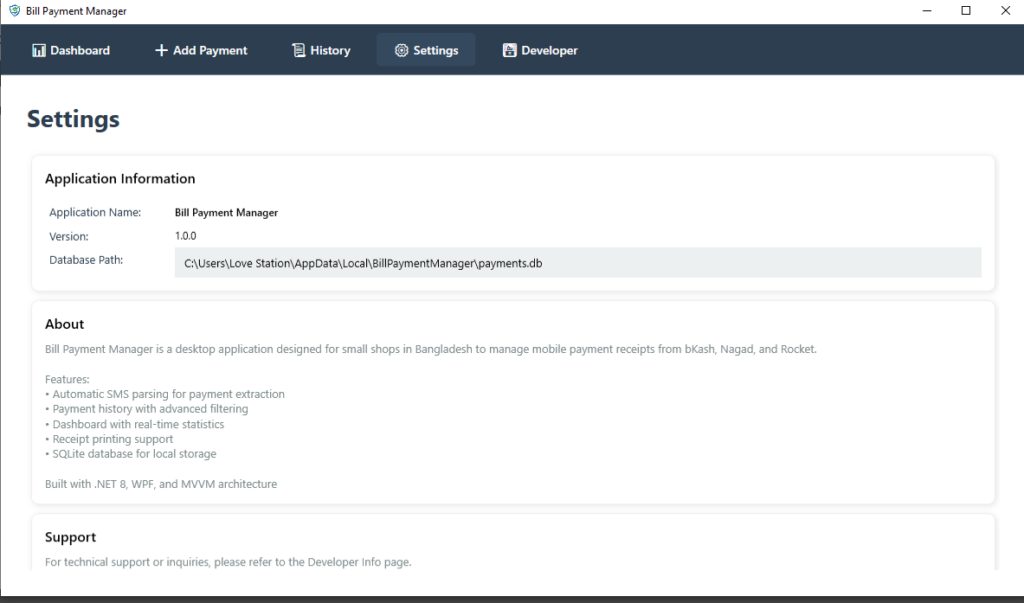
- 💾 Local Database: Secure, offline SQLite storage for all transaction history.
User Guide
1. Dashboard
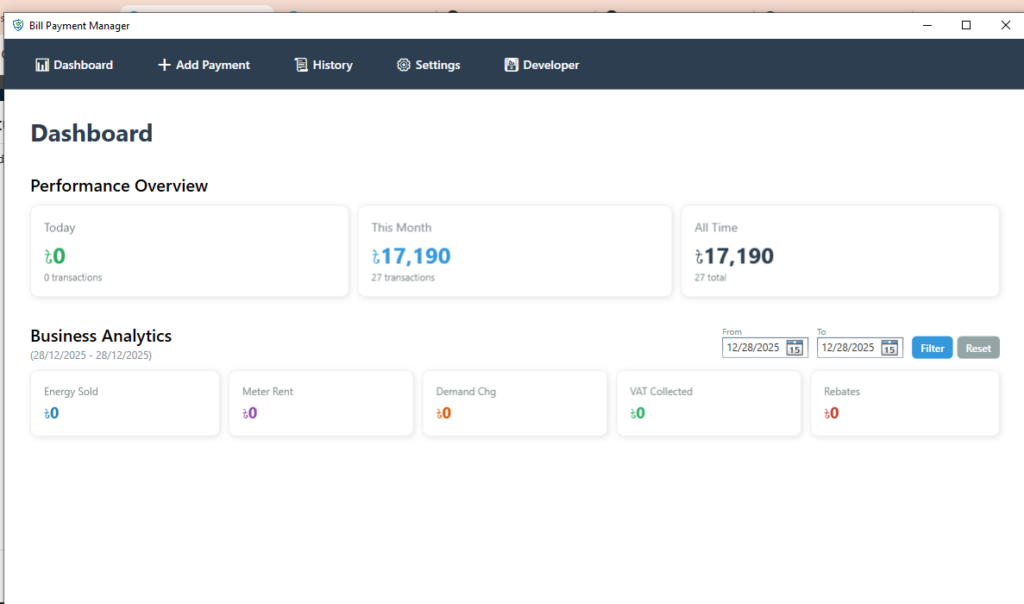
The Dashboard is your home screen, split into two key areas:
- Performance Overview: A static top row showing “Today”, “This Month”, and “All Time” sales totals. These numbers always show your current status.
- Business Analytics: A detailed grid showing where your money is going (Energy vs VAT vs Fees).
- Filtering: Use the Date Pickers in the Business Analytics header to filter this section by specific dates (e.g., “Last Month”).
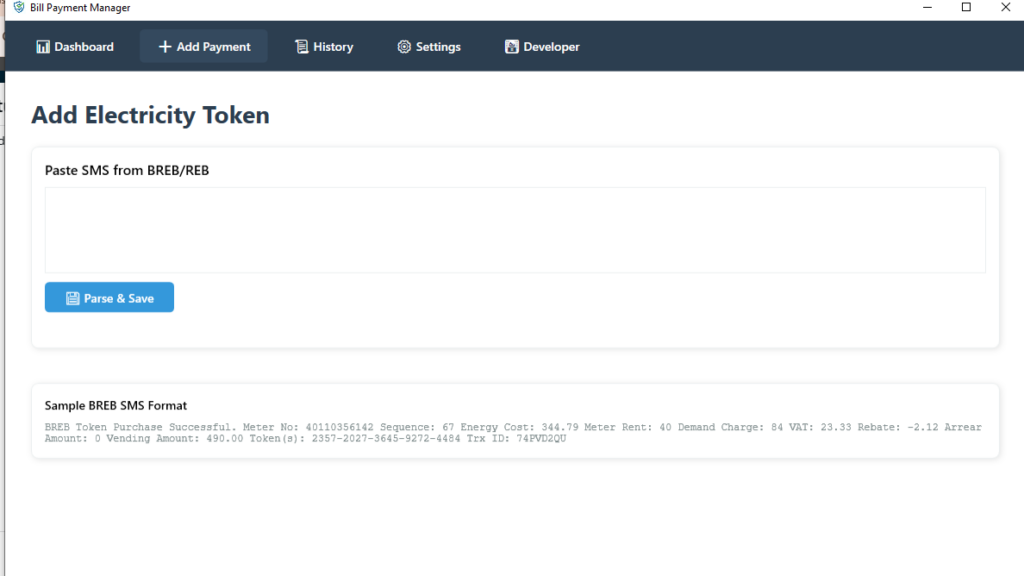
2. Selling a Token (Add Payment)
- Navigate to ➕ Add Payment.
- Paste SMS: Copy the transaction SMS from your phone/provider and paste it into the box.
- Click Parse & Save.
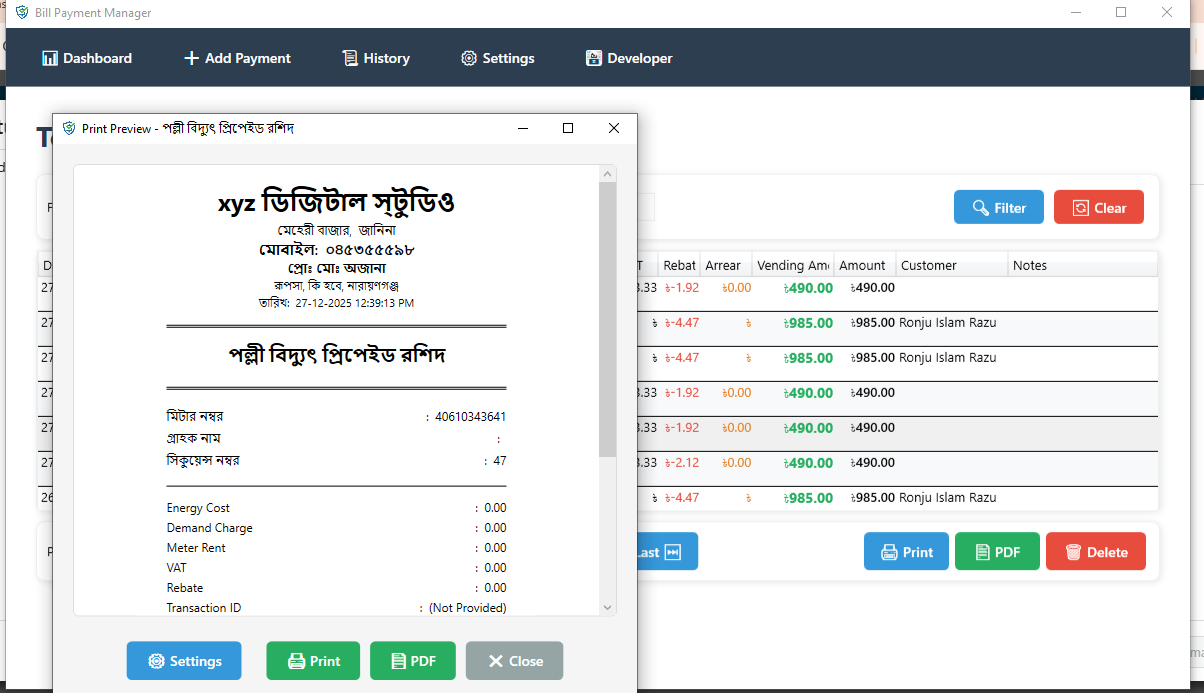
- The app reads the SMS, saves the data, and immediately opens the Receipt Preview.
- Print: Click the Print button to print the receipt for the customer.
- The form auto-clears so you are ready for the next customer immediately.
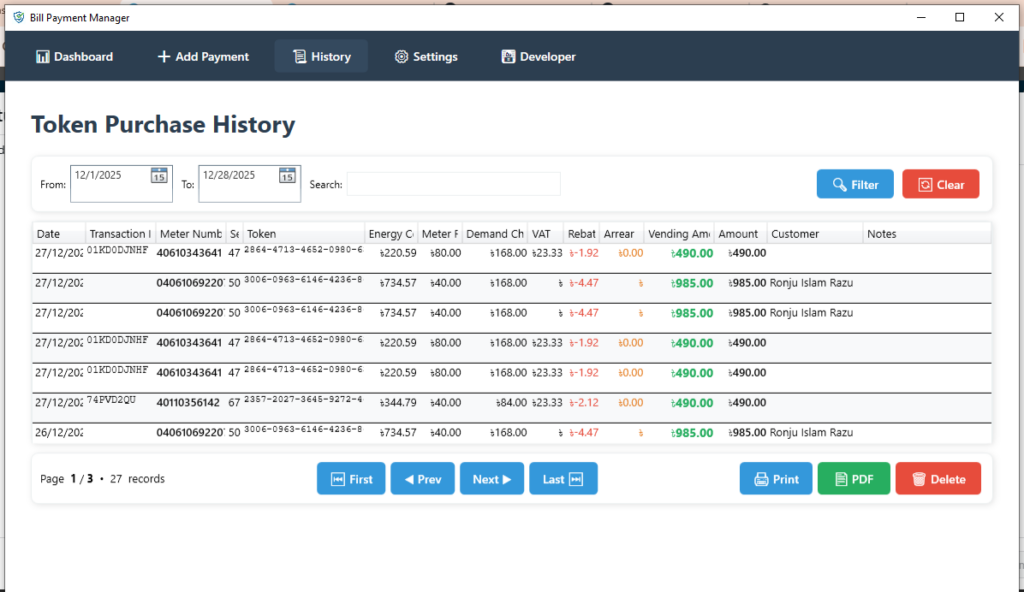
3. Payment History
- Navigate to 📜 History to see a log of all past sales.
- Search: Find a transaction by Meter Number, Customer Name, or Transaction ID.
- Reprint: Select any row and click “Print” to issue a duplicate receipt.
- Delete: Remove erroneous entries if necessary.
4. Developer Info
- Click 👨💻 Developer in the menu to view the developer’s contact information and support details.